|
<< Click to Display Table of Contents >> Health Concerns Tab |
  
|
|
<< Click to Display Table of Contents >> Health Concerns Tab |
|
Health concerns are health-related matters that are of interest, importance, or worry to the patient, patient's family, or provider. These can be added from the Health Concerns tab on the Problem Management card in PDC or from the Health History module. When accessed from Health History, the system launches a full-screen version of the Problem Management card, with the Health Concerns tab selected. The tab contents and capabilities are the same regardless of how it is accessed.
As with problems, health concerns can be added, edited, and removed, and their status can be marked Active, Provisional, Historic, or Recurrence. Health concerns can also be associated with a problem on the Problem List or promoted to a problem (assuming the user has sufficient application permissions).
Health concerns can also be triggered by responses to a Health Status Assessment completed from Health History. Potential health concerns created from a Health Status Assessment appear on the Health Concerns tab with a status of Provisional.
NOTE: For more information on Health Concerns and Health Status Assessments, refer to the Health History user guide.
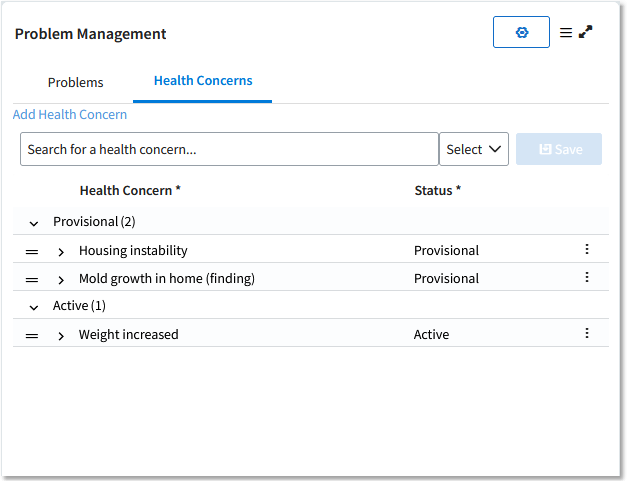
Problem Management Card - Health Concerns Tab
1.To enter a new health concern, begin typing the description in the Add Health Concern search box. Health concerns matching the typed text appear in a drop-down list as you type. From this list, select the appropriate concern.
2.From the Select drop-down, select the status for the concern: Active, Historic, Provisional, or Recurrence.
3.Select Save. The concern is added to the Health Concerns list. To view and enter more details about the concern, select the chevron (expand) icon to the left of the concern and complete the appropriate fields (described below).
•To replace an existing health concern with a different health concern, hover over the concern to display the Edit  icon; then select the icon and begin typing text to identify the modified health concern. The system will not accept free text; you must instead select a codified option. As you type, matching health concerns will appear. Select the one you want to replace the existing health concern with.
•To change the status of an existing health concern, hover over the current status to display the Edit icon; then select the icon and choose the new status from the menu.
•To change the order in which health concerns display within a section (i.e., to indicate the priority of the health concerns), drag them by the move icon (horizontal lines) to the left of the health concern.
•To view more details about a health concern, select the expand (chevron) to the left of the health concern. The following information will display. Editable fields can be modified as needed.
oSNOMED & ICD10: Selecting the expand (chevron) will display the SNOMED and ICD10 code(s) and the description associated with the health concern.
oOnset Date: Identifies when the health concern began. The field can be formatted in MM/DD/YYY HH:mm, MM/DD/YYYY, MM/YYYY, or YYYY.
oResolved Date: Identifies when the health concern was resolved, if applicable. The field can be formatted in MM/DD/YYYY, MM/YYYY, or YYYY.
oHealth Status: Identifies the patient's current health status. Use the drop-down list to select the appropriate status.
oSource: Identifies the source of the information collected about the health concern. Use the drop-down list to select the appropriate source (e.g., Patient, Family Member, Provider). If Provider is selected, a search box is displayed to search for and select the Provider name.
oComments: Provides a location to enter additional comments about the health concern.
•To change the default description shown for health concerns on the tab (ICD Code vs. SNOMED Description), select the Filter (cog) icon and make the desired selection.
Because problems and health concerns are related concepts, it is sometimes appropriate to promote a health concern to a problem or to associate the concern with an existing problem on the patient's chart.
•To promote a health concern to a problem, select the Actions  icon and select Promote Concern. A link icon
  will appear between the status and the Actions icon, and the health concern will be added to the Problems tab in the Treating This Visit section.
•To associate a health concern with an existing problem on the patient's Problem List, select the Actions icon and select Associate Problem. Then select the check box for the appropriate problem and select Save. A link icon will appear between the status and the Actions icon, indicating the health concern is associated with a problem.
To delete a health concern from the patient's chart, select the Actions icon to the right of the concern and select Delete Health Concern.