|
<< Click to Display Table of Contents >> Order Set/List/Protocol Screen |
  
|
|
<< Click to Display Table of Contents >> Order Set/List/Protocol Screen |
|
The Order Set/List/Protocol Screen allows users to easily locate and review specific Order Sets, Order Lists (Physician/Facility), and Protocols.
To run the report:
1.From the Application Drawer, select Report Dashboard.
2.If the Order Set/List/Protocol Screen report is already listed on the Report Dictionary screen, double-click the report title or select it and select Run. If it has not yet been added to the Report Dictionary, proceed with step 3.
3.Select Add and search for Order Set/List/Protocol Screen.
4.Select the report and select Insert, or double-click the report title.
5.Select the report title from Report Dictionary. Double-click or select the title and select Run.
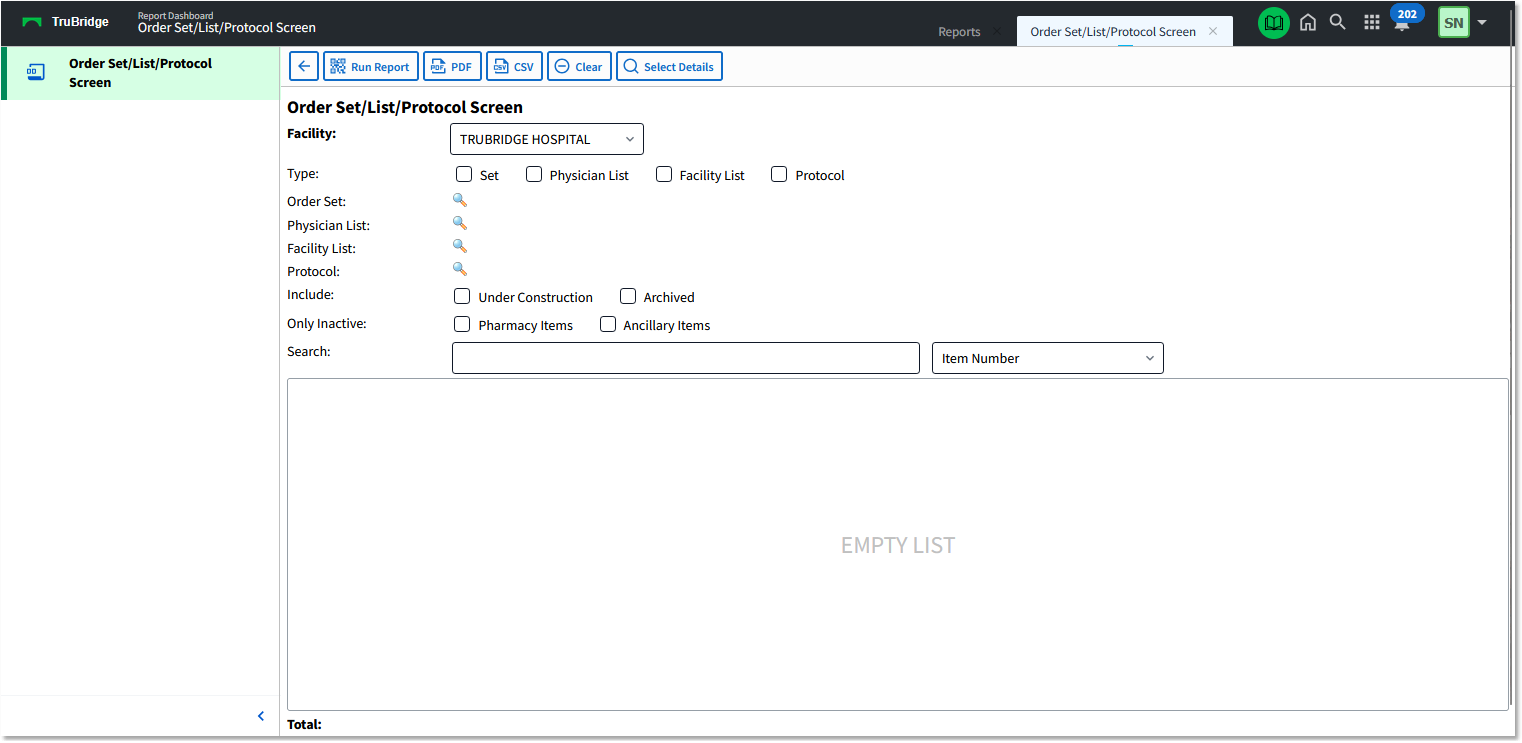
Order Set/List/Protocol Screen
Select report parameters as described below.
•Facility: If multiple facilities are available, select the facility to include in the report.
•Type: To filter the report by Order Set, Physician List, Facility List, and/or Protocol, select the corresponding check box(es). By default, all check boxes are deselected and the report will include all active Order Sets, Physician Lists, Facility Lists, and Protocols.
•Order Set, Physician List, Facility List, and Protocol lookups: To select a single or multiple Order Sets, Physician Lists, Facility Lists, and/or Protocols, select the lookup (magnifying glass) icon in the corresponding field; then select the item(s) to include. One or multiple options can be selected from each lookup screen. On each screen, the Active check box defaults to checked. Deselect the check box to locate inactive items, and select the Under construction and/or Archived check box(es) to display sets/lists/protocols that have been set to Under Construction or Archived. Use the Search box on each lookup screen to find a specific item by its description. When finished selecting items, select the Update button to return to the report parameters.
NOTE: See Order Set, Physician List, Facility List, and Protocol Lookup Screens below for more information on these lookup options and an example of each screen.
•Include: Select check boxes as desired. Both check boxes default to unchecked.
oUnder Construction: Selecting this check box will include any sets, lists, or protocols that are currently marked as Under Construction in the Order Set/List/Protocol table. With the box unchecked, Under Construction items will be excluded from the report.
oArchived: Selecting this check box will include any sets, lists, or protocols that have been Archived in the Order Set/List/Protocol table. With the box unchecked, Archived items will be excluded from the report.
•Only Inactive: Select check boxes as desired. Both check boxes default to unchecked.
oPharmacy Items: Selecting this check box will display sets, lists, and protocols that contain Inactive Pharmacy Items (items that have been set with a termination date in the Pharmacy Item tables).
oAncillary Items: Selecting this check box will display sets, lists, and protocols that contain Inactive Ancillary Items (items that have been set with a termination date or have the Ancillary Procedure? field unchecked in ALL Ancillary Department Item tables).
•Search: To search for specific items by Item Number or Nursing Order Description, select the appropriate search option from the drop-down and type the text to find in the search field.
Once all parameters have been selected, select Run Report to display the results. The report displays within the area below the parameters (where "Empty List" initially appeared). To send the report to a PDF or CSV file, select the PDF or CSV button on the action bar.
To clear the search selections and report results, select Clear.
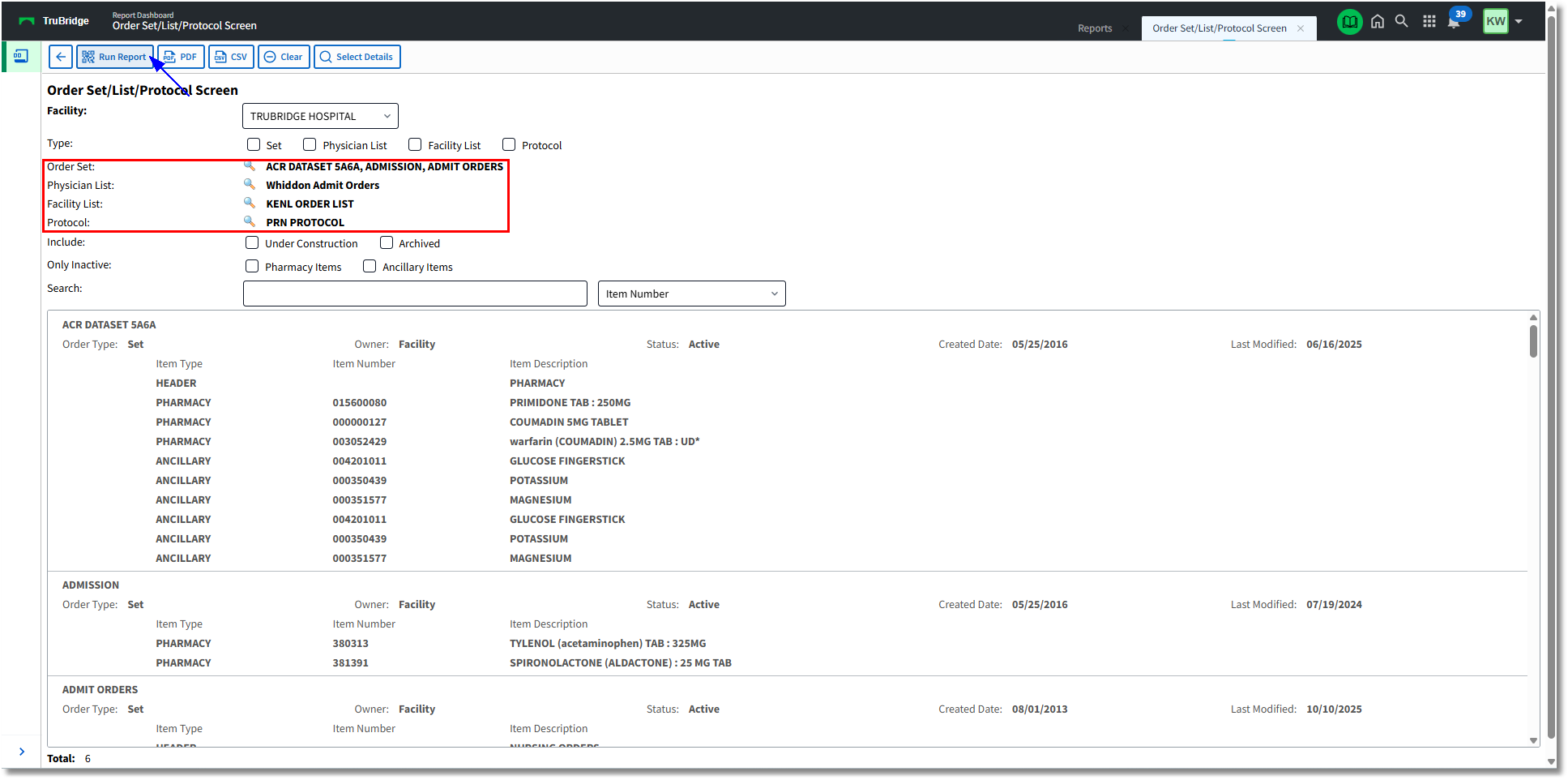
Order Set/List/Protocol Screen - with Report Data
Order Set, Physician List, Facility List, and Protocol Lookup Screens
Selecting the lookup (magnifying glass) icon in the Order Set, Physician List, Facility List, or Protocol field opens a lookup screen from which you can select the specific item(s) to include in the report.
•Order Sets: The Order Sets lookup screen displays all Order Sets for the facility. Use the filter check boxes and search field above the list as necessary to locate the appropriate Order Set(s); then select the check box for each Order Set you want to include. When finished, select Update to return to the Order Set/List/Protocol Screen.
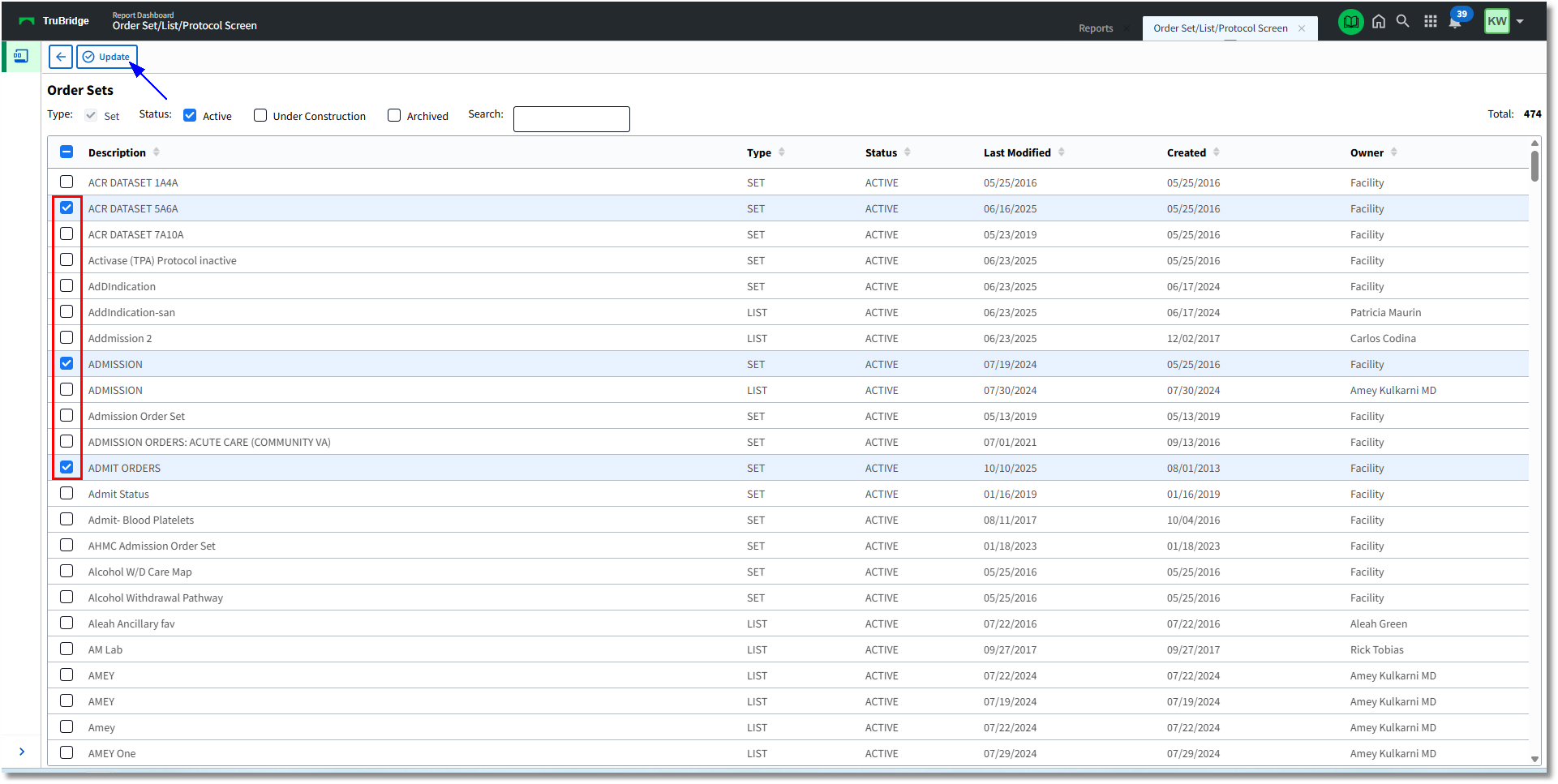
Order Sets Selection
•Physician List: The Physician List lookup displays all Order Lists that are set with an Owner who is a physician/provider. Use the filter check boxes above the list as necessary to locate the appropriate Order Lists. You can also search for Order Lists by Description (the default option), Physician Name, or Physician Number. When the Physician Name or Physician Number search option is selected, the All (default), Staff, and Non-Staff radio buttons are enabled and can be used to narrow the search. When finished selecting the appropriate Order List(s), select Update to return to the Order Set/List/Protocol Screen.
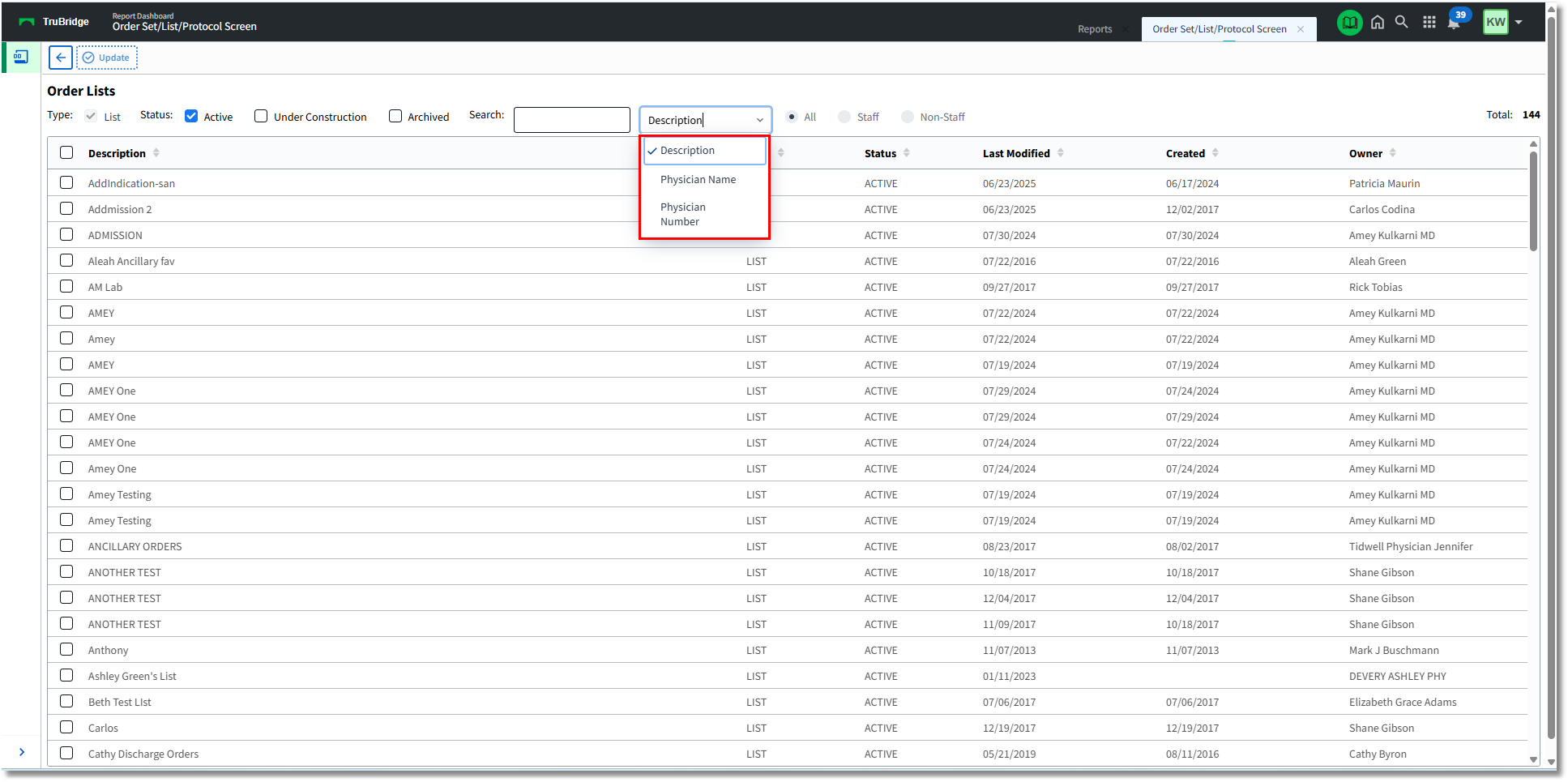
Physician Order Lists Selection
•Facility List: The Facility List lookup displays all Order Lists where the Owner is set to Facility. Use the filter check boxes and search field above the list as necessary to locate the appropriate Order List(s); then select the check box for each Order List you want to include. When finished, select Update to return to the Order Set/List/Protocol Screen.
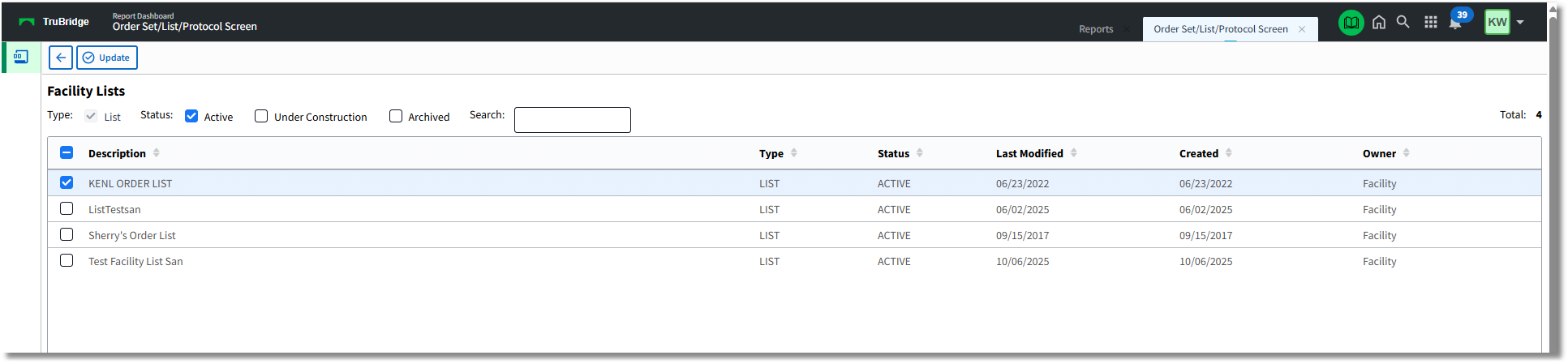
Facility Order Lists Selection
•Protocol: The Protocol lookup displays all Protocols for the facility. Use the filter check boxes and search field above the list as necessary to locate the appropriate Protocol(s); then select the check box for each Protocol you want to include. When finished, select Update to return to the Order Set/List/Protocol Screen.
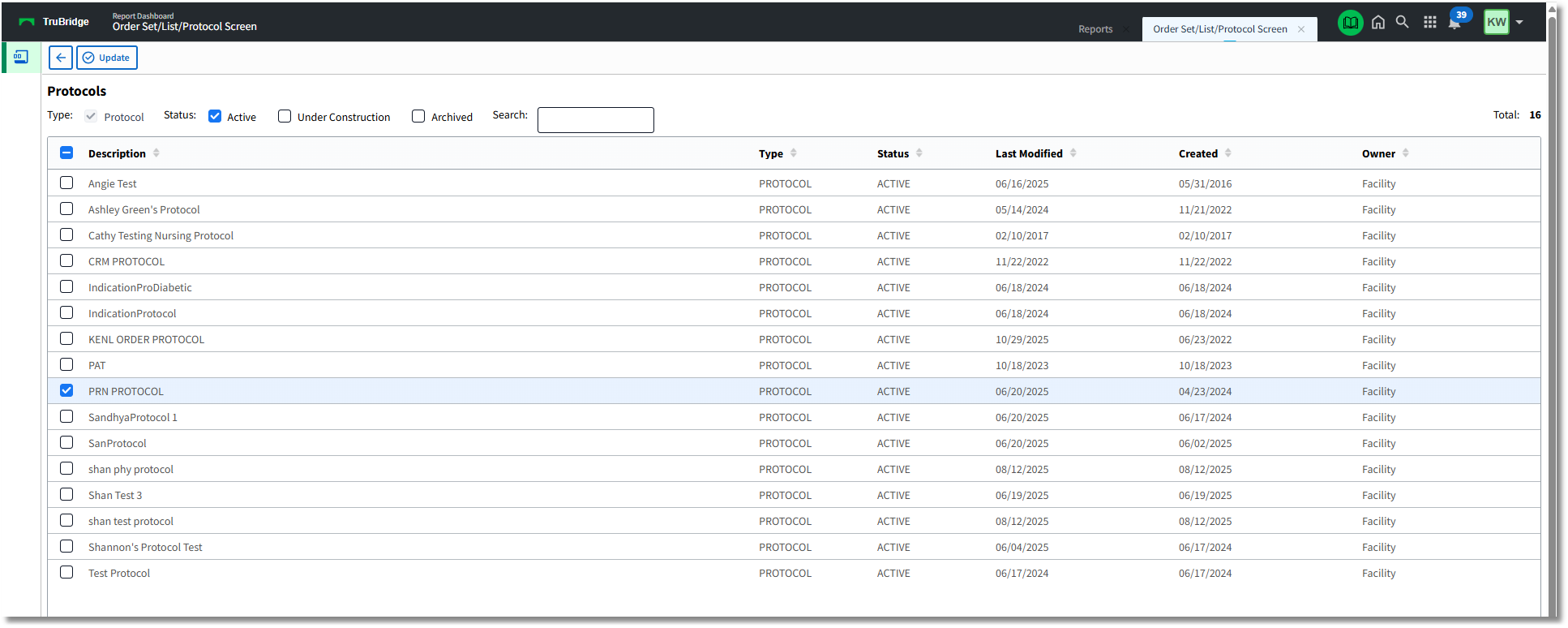
Protocols Selection
Selecting Details
The Select Details button on the action bar of the Order Set/List/Protocol Screen allows you to choose the specific details you want included when the report is run. From the Order Set Details screen, select the check boxes for the items to include; then select Save. The selections you make will be "sticky," meaning the system will keep the same items selected each time you return to the report, until you clear or alter the selections.
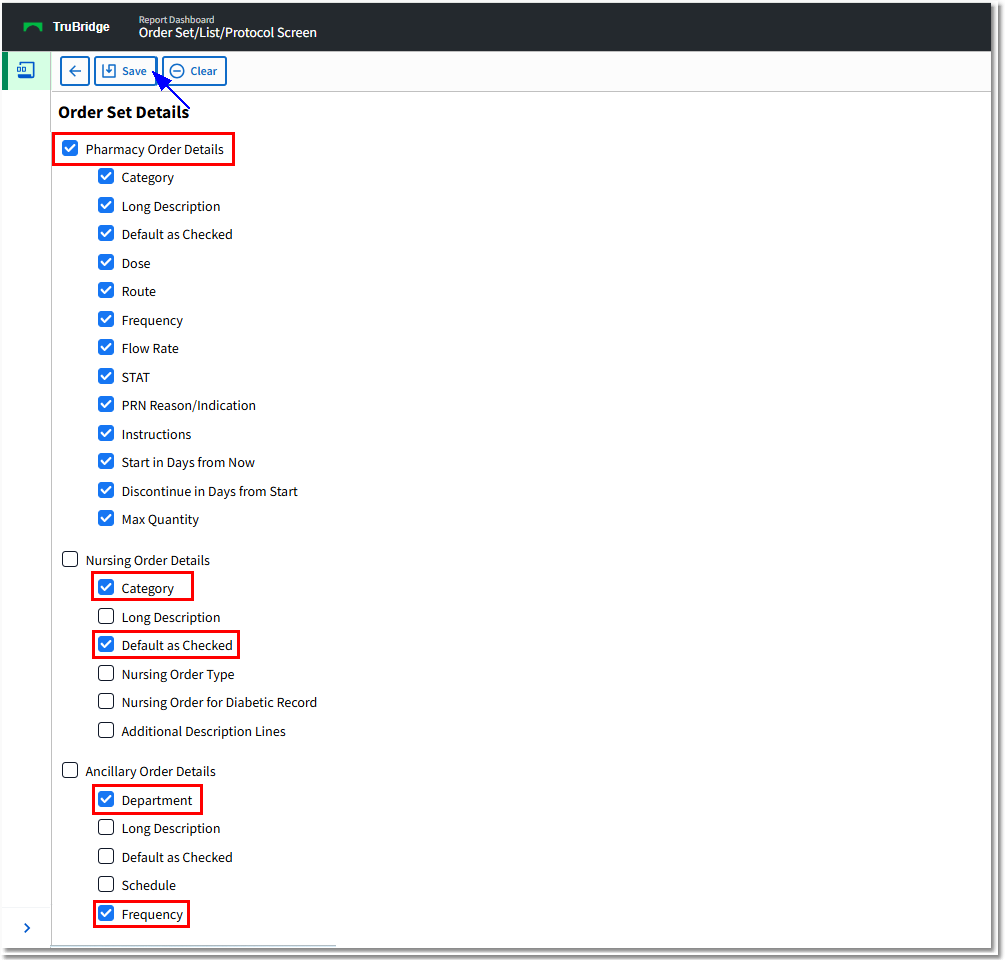
Order Set Details Screen
The details that are chosen from the Order Set Details screen will display when Run Report is selected.
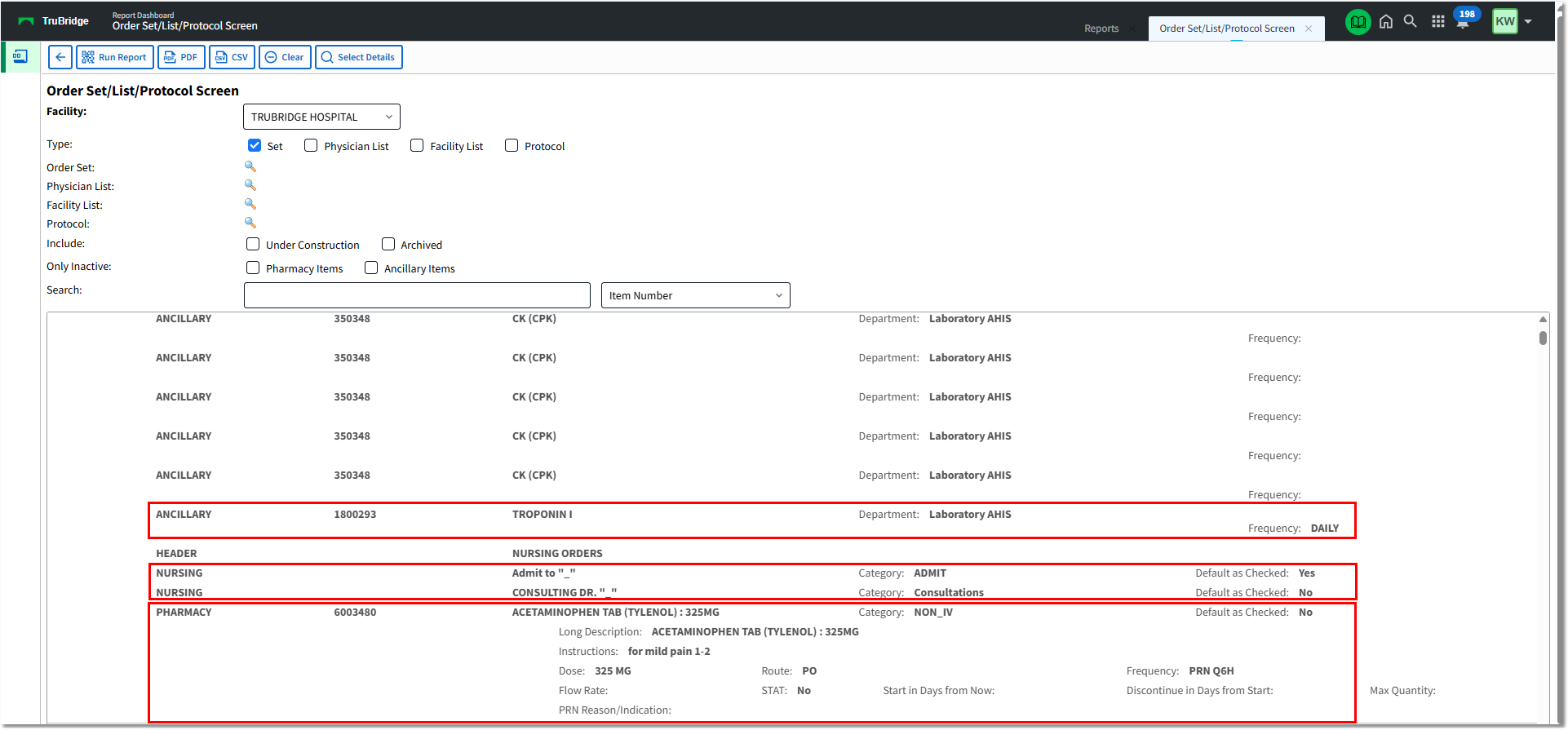
Order Set/List/Protocol Screen - with Report Displayed