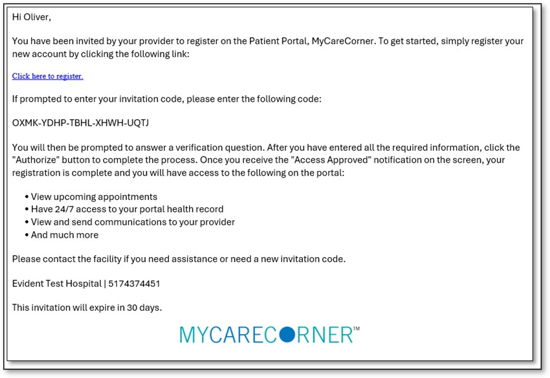
The MyCareCorner (MCC) patient portal provides patients with access to their electronic health record. You, as the patient, can register for the MyCareCorner patient portal several different ways. Typically, your healthcare provider (hospital or clinic) will provide you with an email (if you provided an email address) or a printed copy of instructions for accessing the MyCareCorner website.
Email Invitation: Contact your healthcare provider (hospital or clinic) to request an email registration invitation for MyCareCorner.
Printed Invitation: Contact your healthcare provider (hospital or clinic) to request a printed registration invitation for MyCareCorner.
The instructions for completing the registration steps are included in this document.
The email is generated by your healthcare provider (hospital or clinic) and contains embedded information specific to the patient being invited to the portal. If you haven’t received an email, contact your provider to generate one for you.
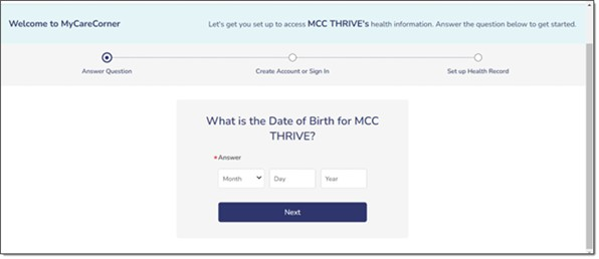
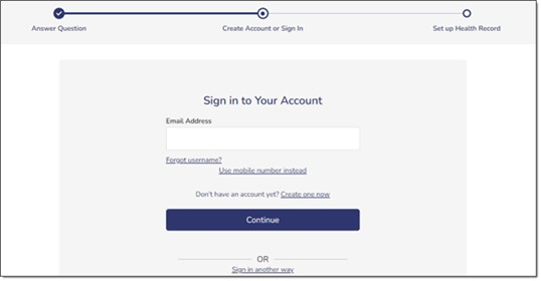
If you click Create one now, the Create Your Account page is displayed. Go to step 4. However, if you already have a MyCareCorner account that you set up previously (invitation from another provider), enter your Email and click Continue. Then, enter your password and click Sign In to access your portal home page (Step 10).
NOTE: Using the social login does not share your personal information with that application.
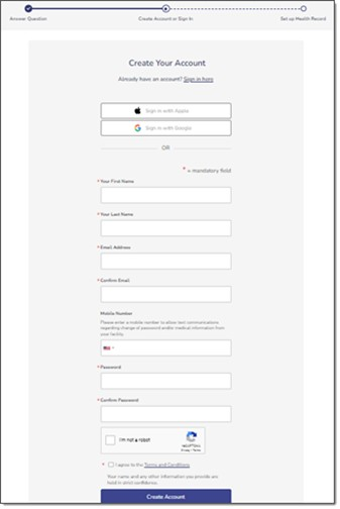
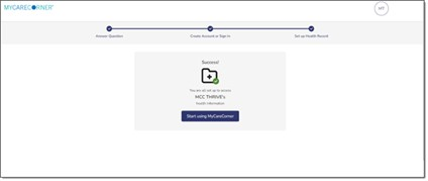
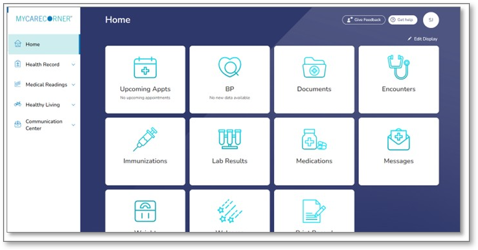
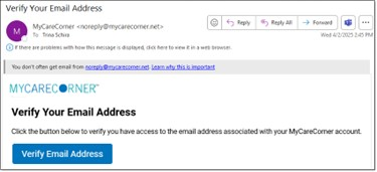
NOTE: If you don’t see the email in your Inbox, check your Spam and Junk folders. Also, be sure to check the Allow Sender option to ensure you receive future emails from MyCareCorner when needed to reset your password.
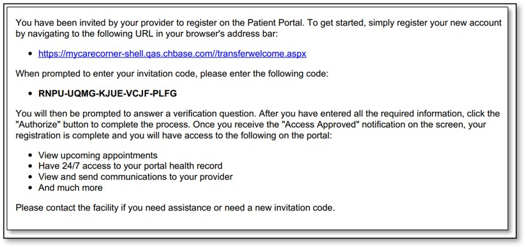
The printed invitation has the detailed link displayed. This link contains embedded information specific to the patient being invited to the portal.
The MyCareCorner patient portal has application help that can provide you additional guidance on how to perform tasks and access your health record. You can access the application help from two locations: